Function Button Annotations
A very special annotation is the function button annotation.
This allows you to insert a button anywhere in the document and configure it with various actions to be executed when tapped.
Possible functions include sending various MIDI commands, jumping to another page, starting or stopping playback, scrolling, or the metronome, and much more.
.png)
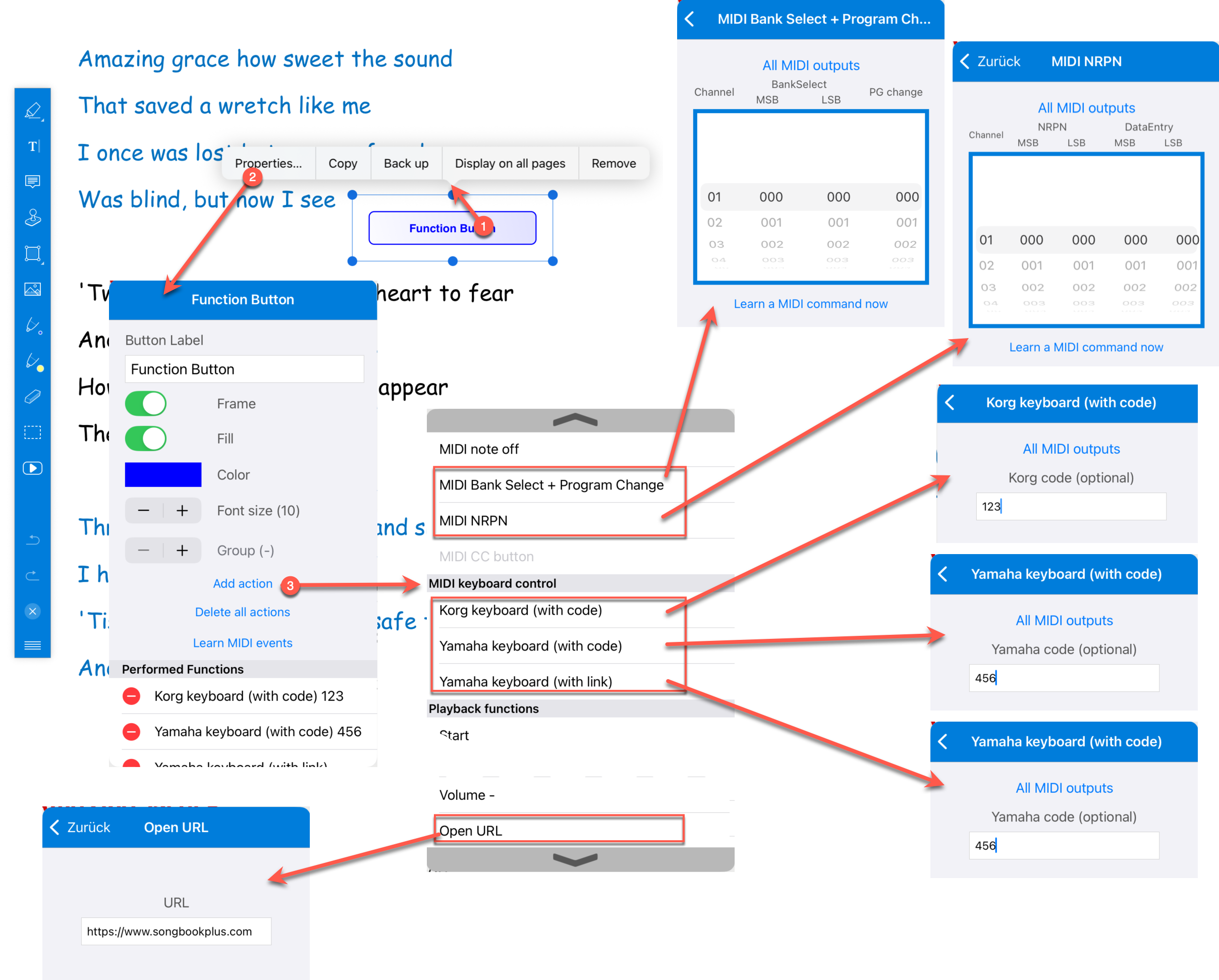
Insert function button annotation
 Press this button to insert a function button annotation.
 Press "Properties" to open the properties window.
 Use the "+" to add the desired actions to be executed later when pressing the button.
 The function buttons can optionally also have a group number. This is used, for example, to control specific function buttons or one function button after another using a foot pedal based on this group number.
Extended Actions
Function buttons can also be used to control external devices, keyboards, or other apps.
For easy keyboard control, there are actions such as "Korg Keyboard (with code)", "Yamaha Keyboard (with code)" and "Yamaha Keyboard (with link)". For these actions, a "Code" can optionally be entered directly in the action. If the field is left empty, SongBook+ uses the code or link of the currently opened song, as before.
For Yamaha links, there is also the "Link" button. It can learn the link directly from the connected keyboard.
For more complex MIDI commands, there are the actions "MIDI Bank Select + Program Change" and "MIDI NRPN". These actions provide their own input fields and setting wheels, so such sequences do not have to be assembled from several individual MIDI Control Change and Program Change actions.
If MIDI macros have already been created, they also appear in "Add action" and can be inserted as an action in a function button.
With the "Open URL" action, a function button can open a URL in the browser. Special URLs that are handled by another app can also be triggered this way.
MIDI Controllers with Sliders
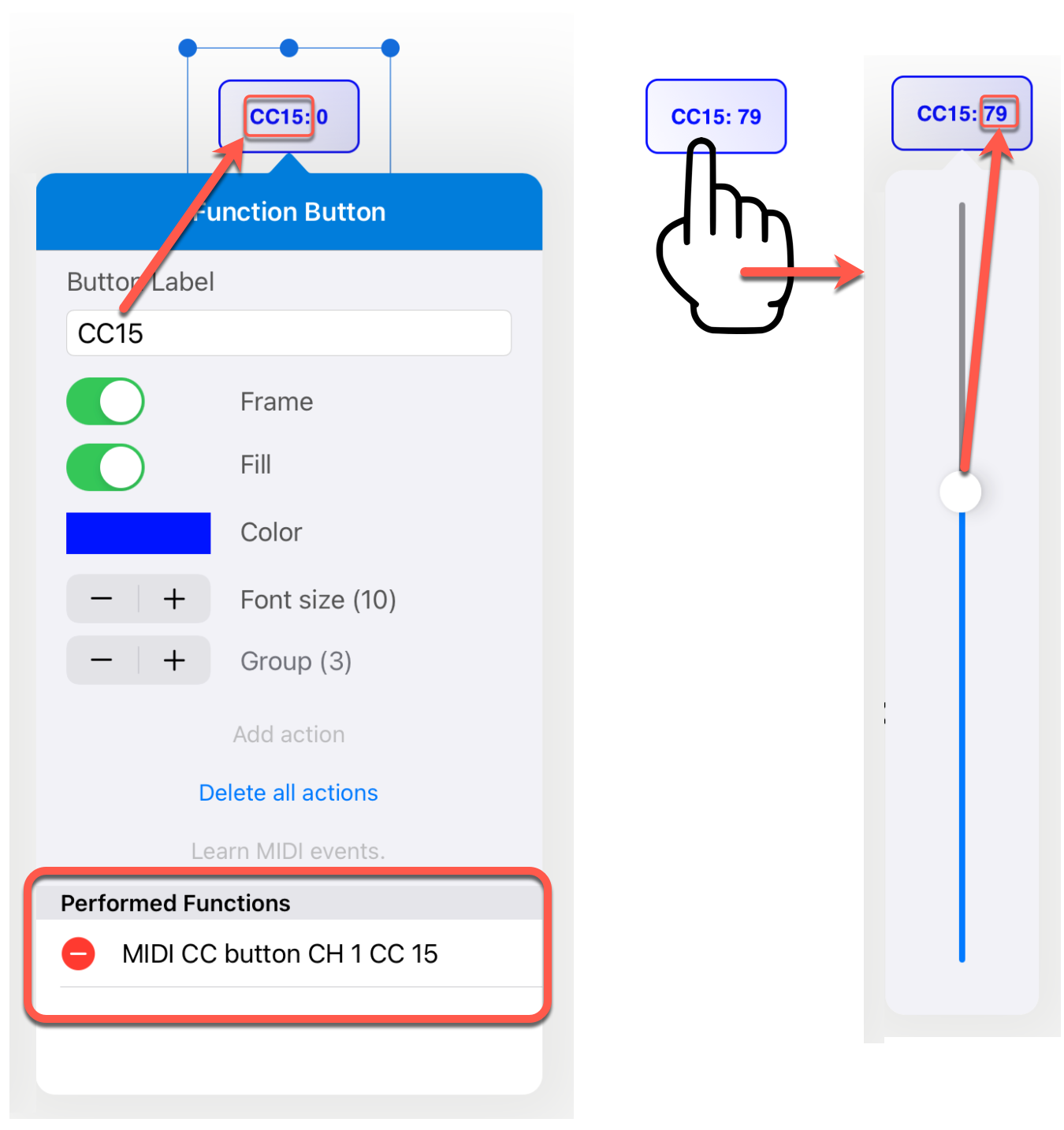
It is also possible to create function buttons that display the value of a specific MIDI controller on a specific MIDI channel. And when you tap the button, a slider appears, allowing you to change the controller value.
To do this, create a normal function button and add "MIDI CC Button" as the only action.