Version 6.2
Changes in Version 6.2
Version 6.2 included, among other things, the following new features:
- Exporting and importing individual books
- Showing song information in the song text, with a larger selection of fields
- Separately selectable MIDI output for many functions
- Simple "MIDI-THRU" for forwarding MIDI events
- Synchronizing the activation and deactivation of loop points with other SongBooks
- Using loop points for forward jumps as well
- Showing images, not only videos, on the external monitor
Exporting and Importing Individual Books
You can now export all songs from individual books completely into one file and import this file again in another SongBook+.
This is similar to the existing function where individual songs can be exported to an .sbk file and imported again in another SongBook+. New is that all songs of a book can be exported at once. The file extension of the exported file is then .sbkbook.
Only the songs are exported, not the playlists contained in the book. The function for exporting and importing books is located on the SongBook+ book cover, where books can also be edited, copied and deleted.
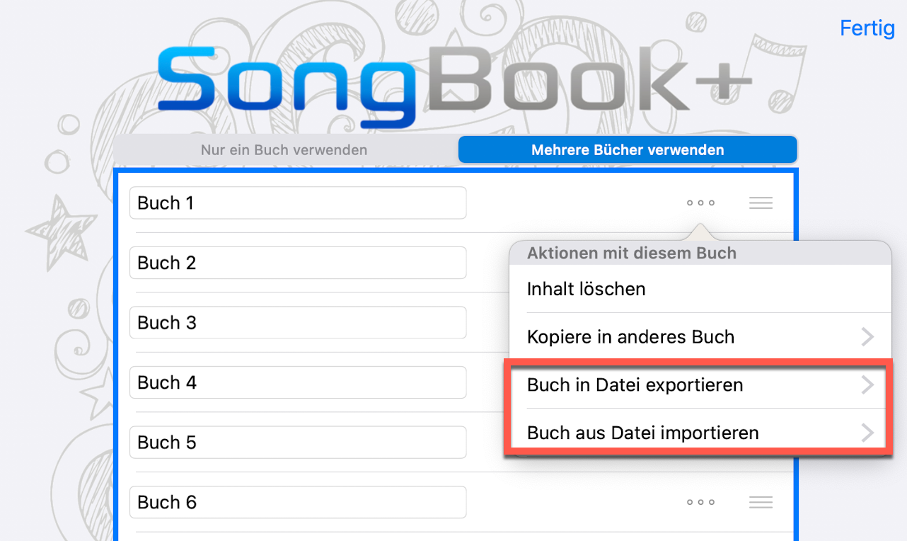
.sbkbook files can also be imported like .sbk files via the menu item "Import files" in the main menu, by passing the file from another app to SongBook+ with "Open in...", or by opening the file in Apple's Files app.
In this case, the songs are imported into the currently open book, even in SongBooks that use only one book.
When exporting, you can decide whether linked files such as PDF, audio, MIDI or video files should also be included, or whether only the song definitions should be exported.
When importing, you can also decide whether included files should be imported or not. If songs with the same title or files with the same file name already exist, SongBook+ asks individually whether to keep the new version, the old version or both. You can also choose to apply the same decision to all items.
Showing Song Information with a Larger Selection of Fields
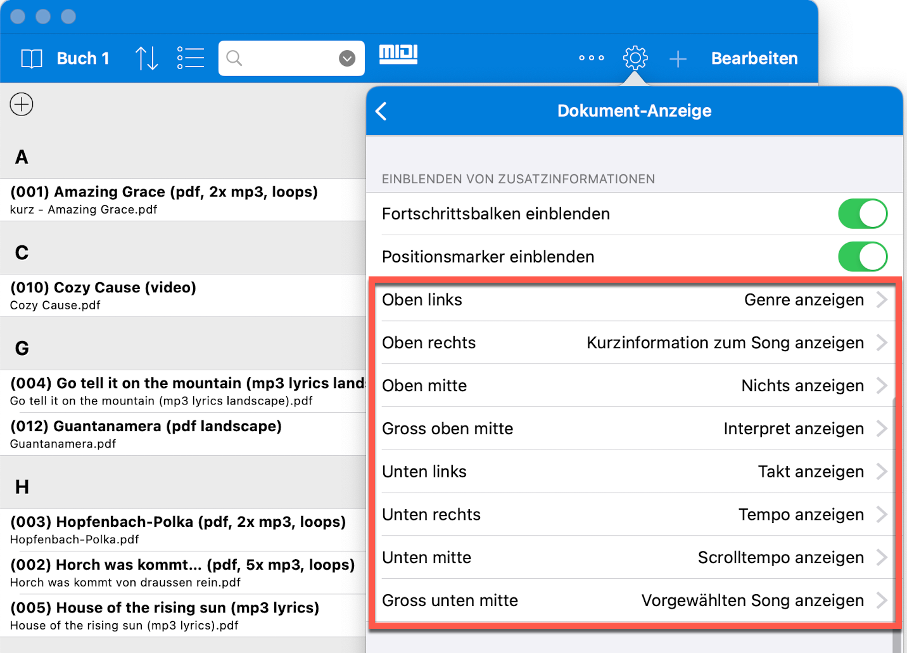
In the settings under "Document view" > "Show additional information", more fields are available that can be shown at the corners and edges.
The way this is configured is now reversed: Instead of choosing for a field where it should be displayed, you choose what should be displayed at the desired display position.
The previous settings should be transferred automatically and entered at the correct display position.
Separately Selectable MIDI Output for Many Functions
If several MIDI devices are connected to the iPad, you may want to send some commands only to a specific device instead of to all devices.
This is now possible for the following functions:
- the MIDI file player
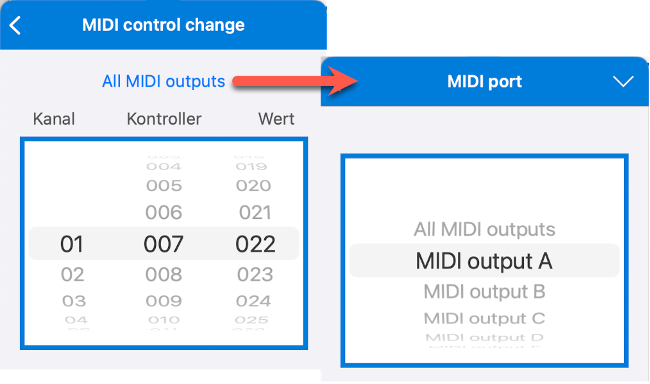
- the BankSelect/ProgramChange or NRPN commands set with the MIDI wheels
- the commands for easy keyboard control with code or links
- MIDI commands in function buttons
- MIDI commands in "Actions when songs are opened", "Actions when songs are started", "Actions when songs are stopped" or "Actions when songs are closed"
- MIDI commands in "MIDI macros"
The settings for this can be found in the "MIDI routing" menu item in the MIDI settings.
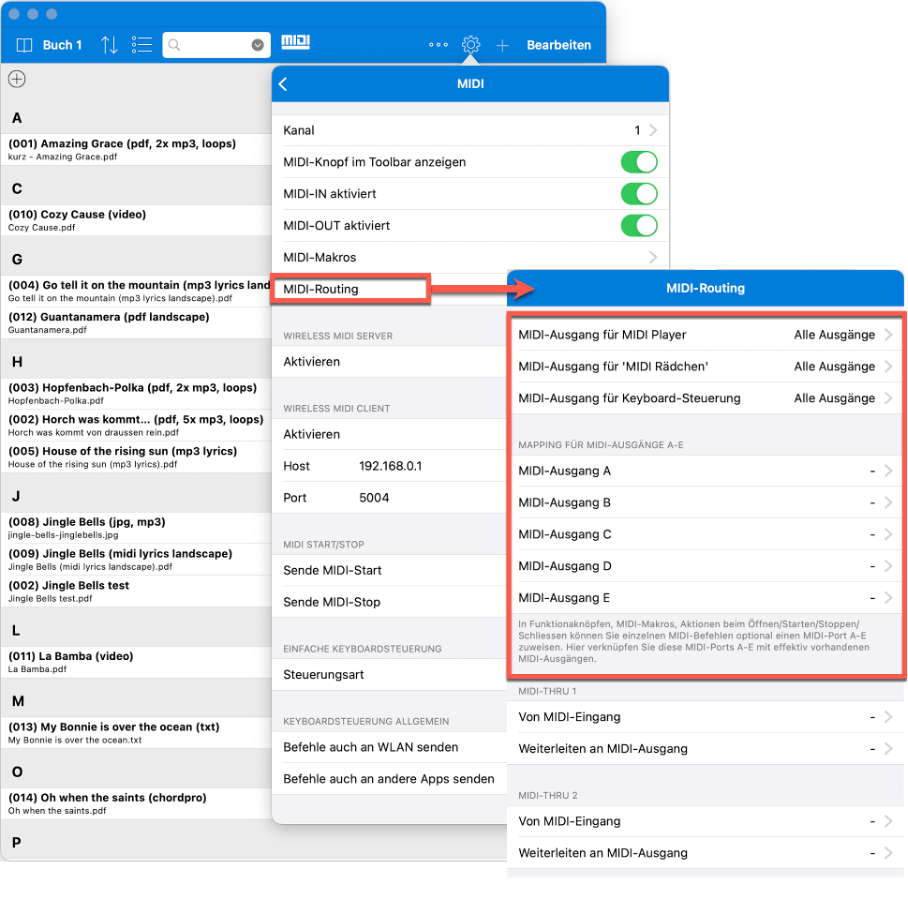
For the MIDI file player, the MIDI wheels and keyboard control, there is a direct setting where one of the currently available MIDI outputs can be selected.
For function buttons, "Actions when songs are opened", "Actions when songs are started", "Actions when songs are stopped", "Actions when songs are closed" and "MIDI macros", this is an indirect setting. For this purpose, there are the settings "MIDI output A" through "MIDI output E", where one of the currently available MIDI outputs can also be selected.
In the actual MIDI commands, one of these outputs A-E can then be assigned if needed, if the command should not be sent to all available MIDI outputs. If you later change the MIDI adapter, the assignment only needs to be changed once for the corresponding MIDI output A-E.
Simple "MIDI-THRU" for Forwarding MIDI Events
This feature is easiest to explain with an example:
If a Bluetooth LE MIDI foot pedal is connected to the iPad, you may also want the MIDI commands sent by this foot pedal to be received by the keyboard that is also connected to the iPad.
Previously this was only possible with additional third-party apps running in the background. SongBook+ can now handle this directly.
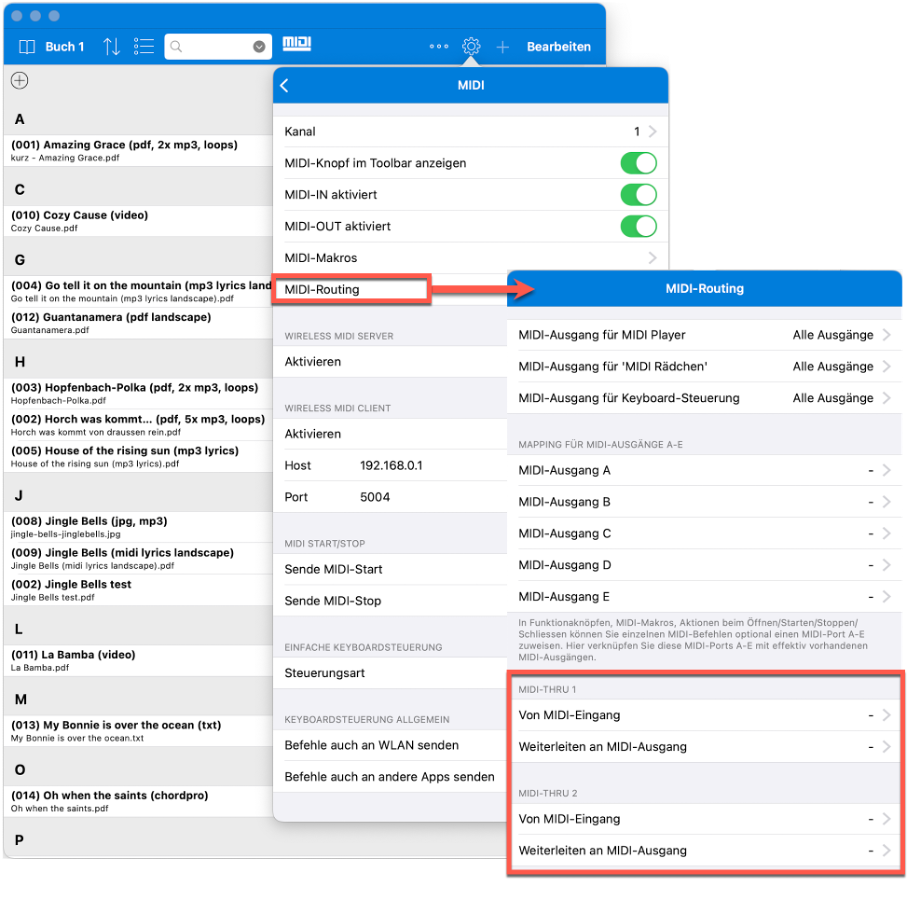
This is configured in the settings under "MIDI routing", in the sections "MIDI THRU 1" and "MIDI THRU 2". There you can select a MIDI input and the corresponding MIDI output to which the signals are forwarded.
If you only want to forward specific individual MIDI signals to a particular device, or even send something completely different to a particular device in response to a specific MIDI signal, that is not a case for MIDI-THRU.
For this, you can use the MIDI foot pedal function in combination with a MIDI macro. The MIDI foot pedal function reacts to a specific MIDI signal and sends a MIDI macro in response. In the MIDI macro, a specific target for the MIDI commands can also be set.
Synchronizing Loop Points On and Off
This feature was requested several times by bands that synchronize multiple SongBook+ devices with each other and also use the SongBook+ loop function.
Now the activation and deactivation of loop points can also be synchronized. For example, pressing loop points on one device can request the repetition of the chorus, and this repetition is then shown and executed on all devices.
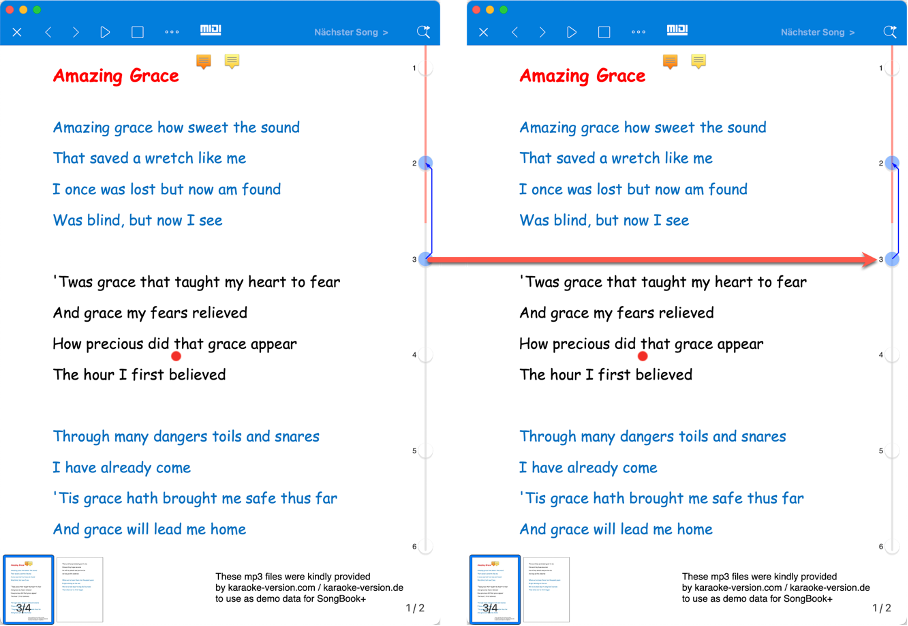
In the settings under "SongBook to SongBook connection", you can choose whether "Send loop points" and/or "Accept loop points" should be enabled.
As generally with the "SongBook to SongBook connection", when many SongBook+ devices are connected, not all of them should be configured as senders and not all as receivers. If too many devices send their state to other devices at the same time, conflicts and incorrect switching can occur.
This function only makes sense if the same songs with the same loop points are open on the connected SongBook+ devices. The numerical position of the pressed loop point is transmitted, for example first, second or third loop point.
Using Loop Points for Forward Jumps
Previously, loop points could only be used to repeat parts of a song and spontaneously extend the song.
Now they can also be used to make forward jumps and thus spontaneously shorten a song.
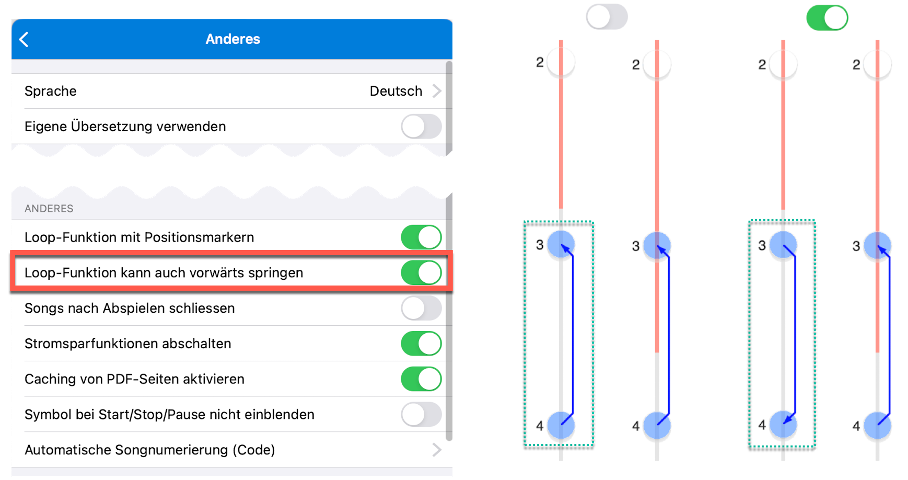
The feature can be enabled in the settings under "Other" > "Loop function can also skip forward".
If the feature is not enabled, everything works as before: If at least two loop points are enabled and at least one of them lies in the future, a backward jump with these two points is scheduled and shown with a backward arrow.
If the feature is enabled and both points lie in the future, SongBook+ reacts differently: Instead of a backward jump, a forward jump between these points is scheduled and shown with a forward arrow.
Showing Images Instead of Only Videos on the External Monitor
SongBook+ has long been able to show the video file linked to a song on the external monitor for the audience, while the PDF file with lyrics or sheet music is displayed on the iPad.
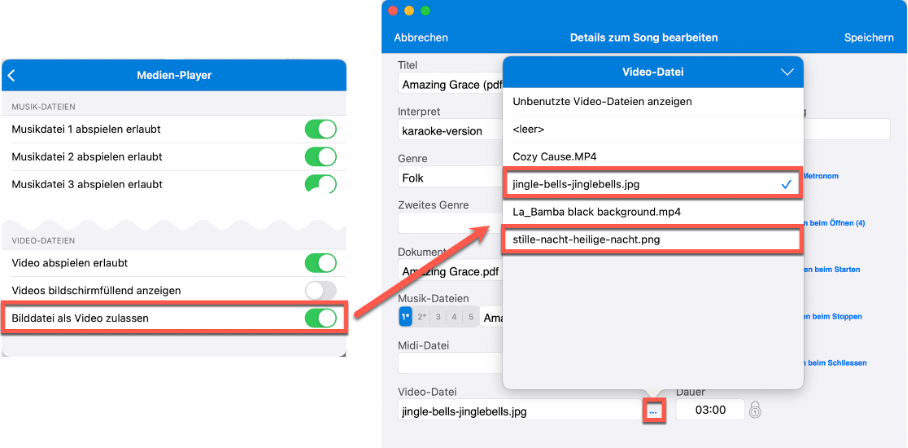
Now image files can also be shown there instead of video files.
For this purpose, image files in JPG or PNG format can be selected in the video player instead of video files. When the song is opened, SongBook+ creates a small temporary video file with a still image and shows it with the video player.
Because it could be confusing if image files appeared in the selection of video files, the feature must first be enabled in the settings under "Media player".